
Frequently Asked Questions
Docusign is a provider of a platform for signing documents involving external contractual partners. As one of the most widely used providers on the market, Docusign has become the de facto standard, which is why the Docusign platform is also used at DZ BANK.
The terms “digital signature” and “electronic signature” are often used interchangeably, but they actually refer to different things. Both are created digitally and applied to documents. However, digital signatures can offer additional security by using special technology to encrypt the signature and authenticate the signatory (e.g. two-factor authentication, certificates) . Digital signatures are therefore a specific type of electronic signature and carry greater legal weight. At our bank, we refer to “simple” e-signatures (see “electronic signature”) and “advanced” or “qualified” e-signatures (the latter two correspond to the digital signatures mentioned above).
The publication of the European eIDAS Regulation (No 910/2014 of the European Parliament and of the Council of 2014) and its transposition into national law (the eIDAS Implementation Act of 2017) laid the legal foundations for the electronic signing of contracts.
No, you do not need to have a contract with DZ BANK or Docusign to sign documents sent by DZ BANK via Docusign.
To create a qualified electronic signature (QES), you need to set up a user account with Sign-me / D-Trust; there is no charge for this. The costs associated with the identification process required for a QES are covered by DZ BANK; to proceed, please initiate the identification process from within the DocuSign workflow.
Yes, there are only a few exceptions that still require a handwritten signature. Please speak to your contact person at DZ BANK about this.
In principle, all contracts, documents and forms used in business transactions can be signed using an electronic signature. In some cases, a wet-ink signature is still required. Please contact your point of contact at DZ BANK for further details.
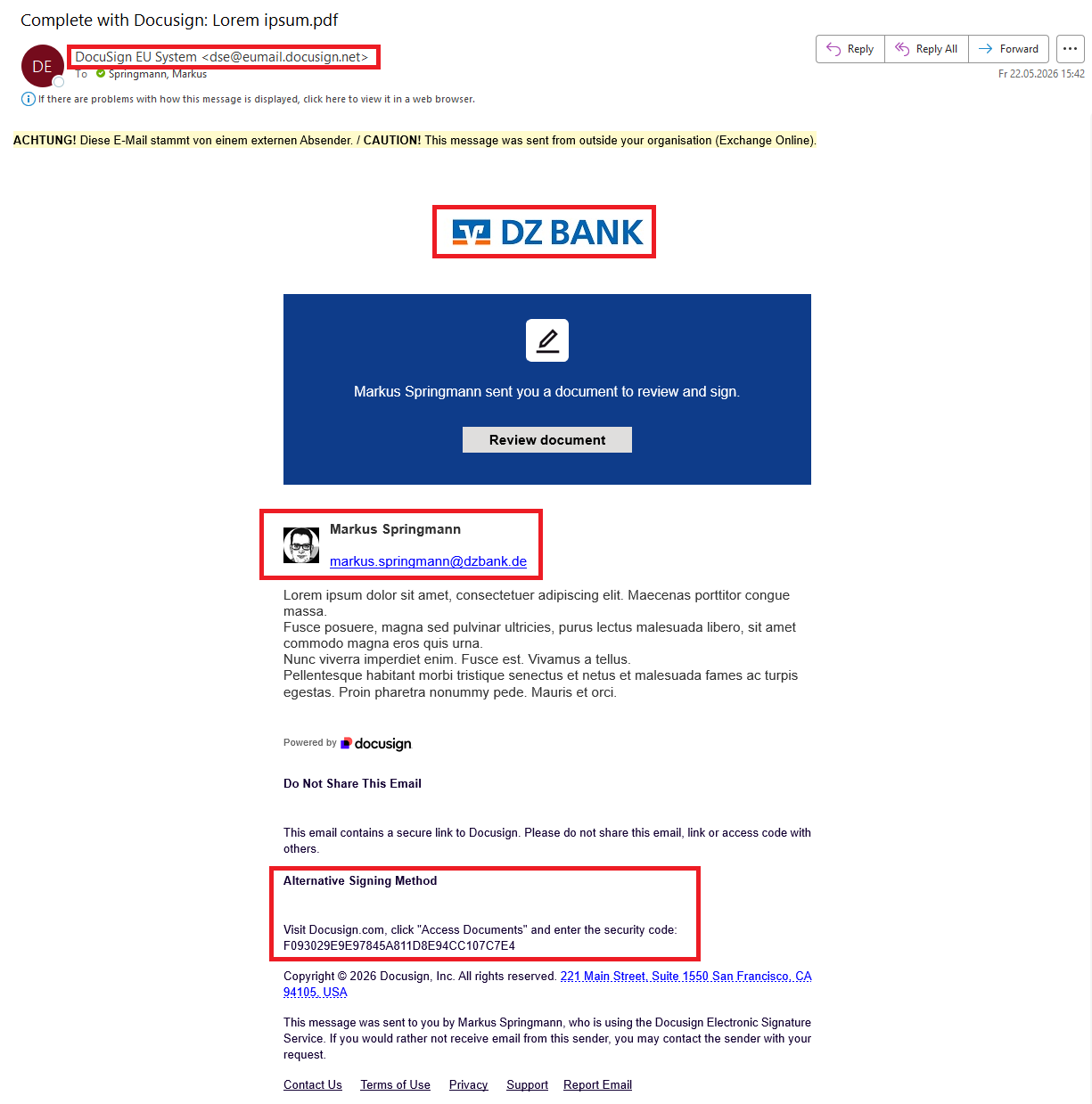
In our daily lives, we are constantly confronted with fraudulent emails. There may also be attempts to redirect you to dangerous websites using fake emails that purport to be from Docusign. You can tell that the request was sent by us by checking the following points:
- The correct sender is: Docusign EU System
- The email contains the name and email address of a DZ BANK employee.
- The DZ BANK AG logo is displayed (you may need to enable image loading in your email programme)
If, for security reasons, you do not wish to follow the link, please go to the website https://www.docusign.com/ and click on "Access
Documents" (top right-hand corner of the page). On the page that opens,
enter the security code provided in the email under "alternative signing
method".
As the recipient administrator, please specify who is to sign the contract. Please check the document in accordance with your internal guidelines and then enter the signatories’ names and email addresses.
You have received an email as follows:
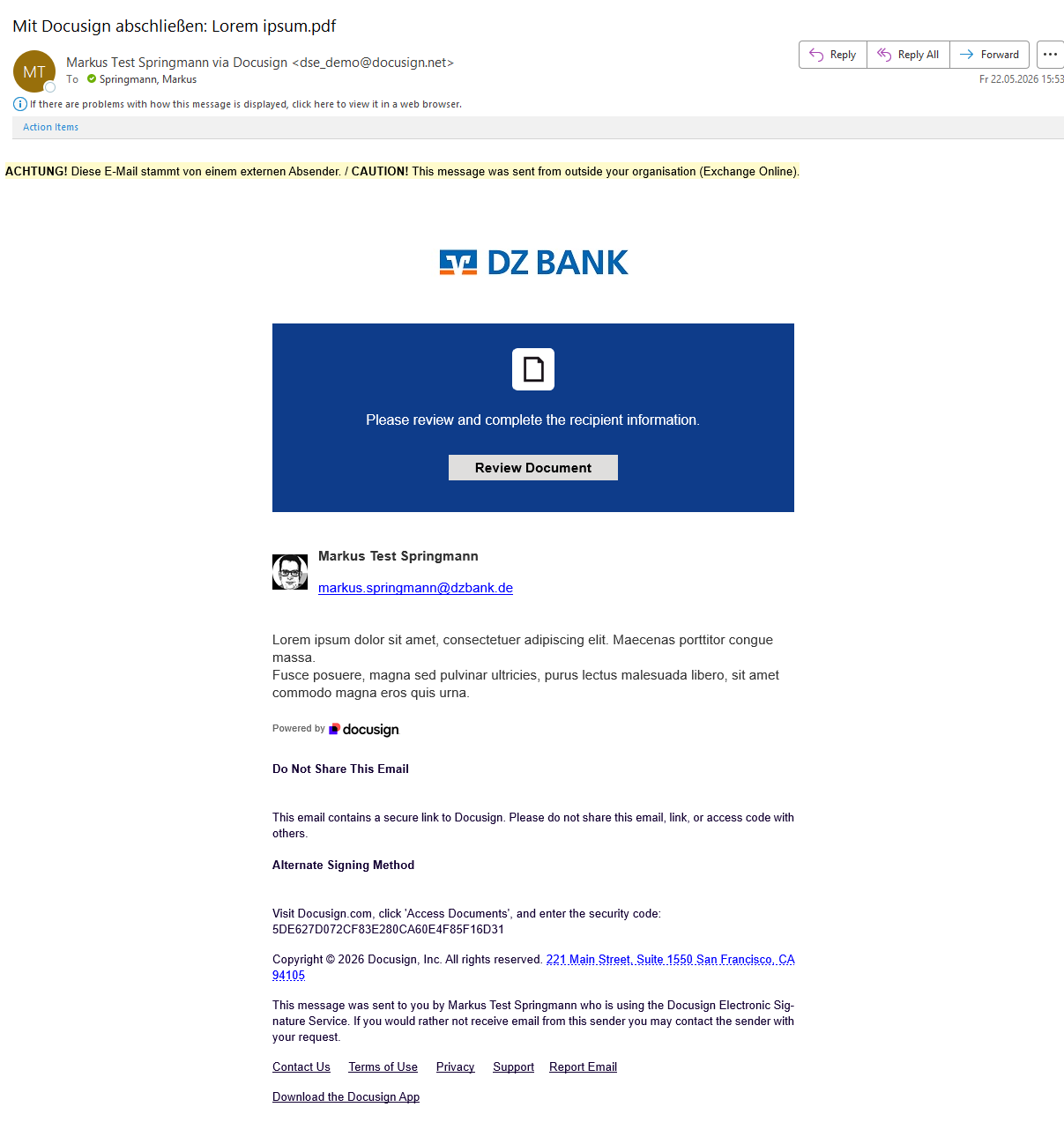
In this email, please click on the "View document" button. Alternatively, you can follow the alternative method described further down in the email and visit the page www.docusign.com, where you will be prompted to enter the security code to access the following view:
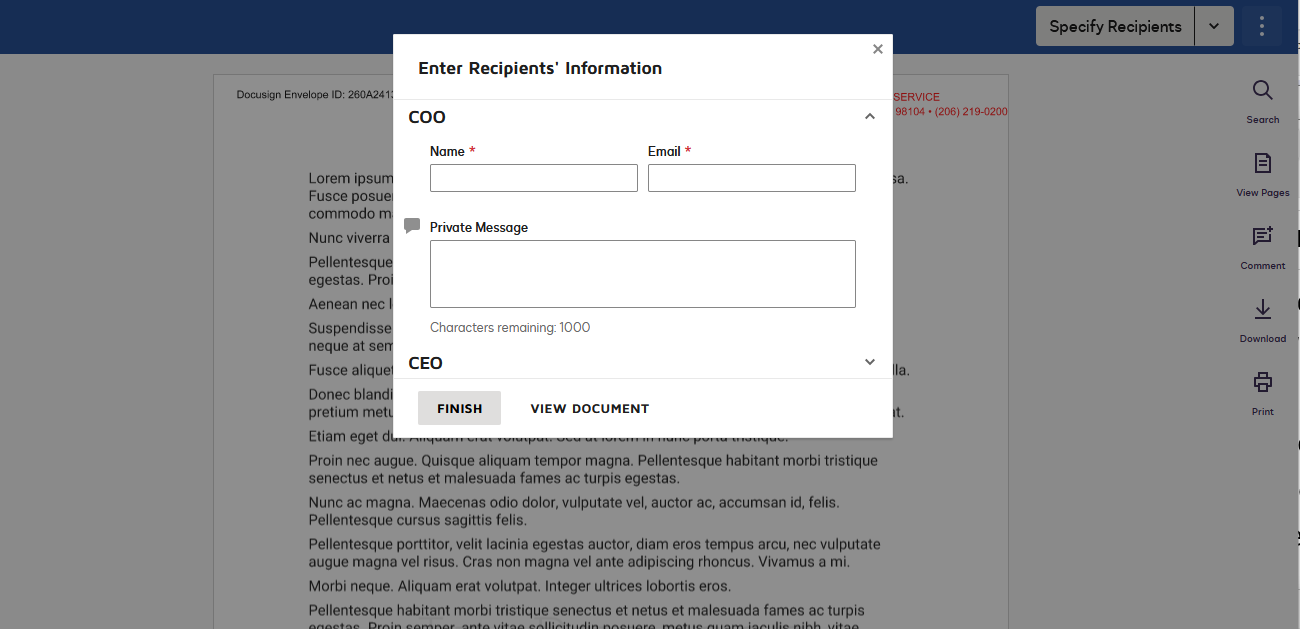
In the standard view, only the input fields for the first signatory are displayed. By clicking the small arrow to the right of ‘Additional recipients’, you can also expand the corresponding fields.
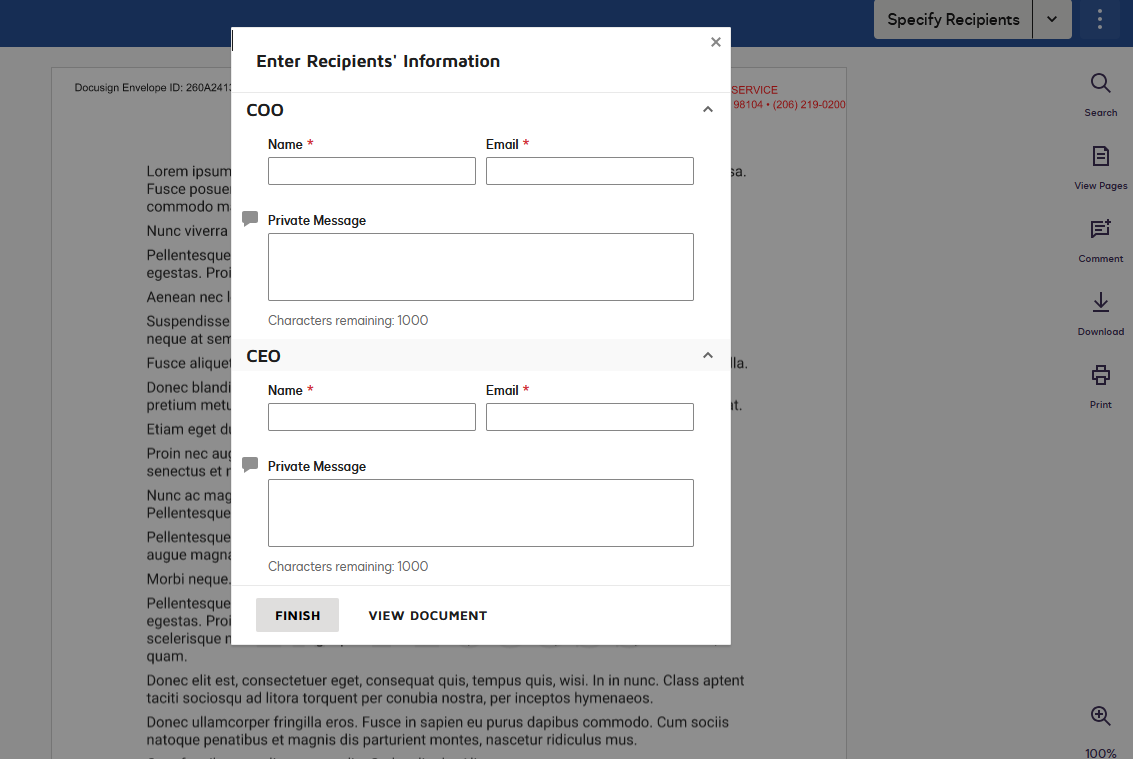
Once you have entered the recipients, click the "Finish" button. The recipients you have entered will be sent an email asking them to sign the document in the order specified.
By clicking the "View document" button, you can view the full document.
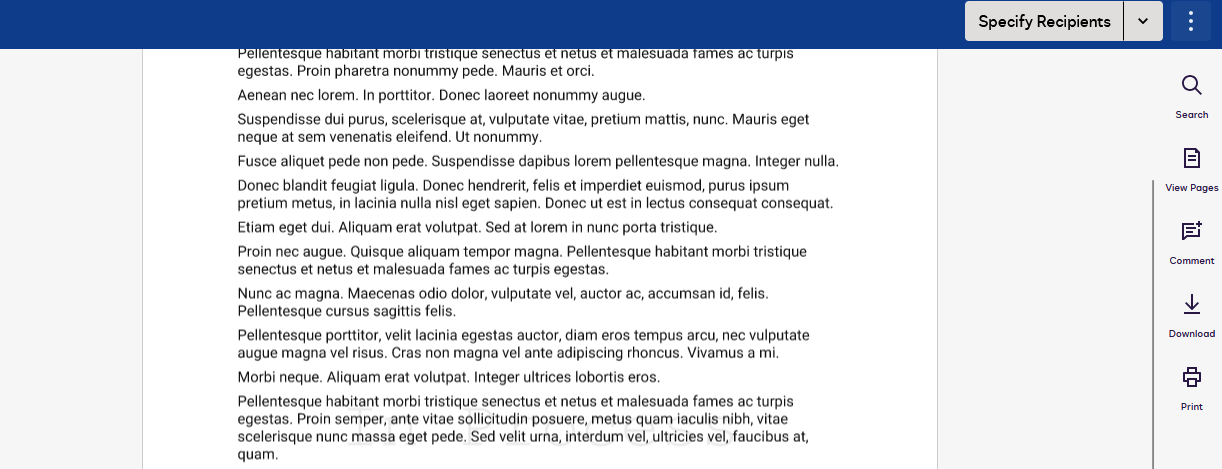
Here you can review the full document, print it or download it as a PDF using the buttons displayed in the centre of the document.
By selecting "Specify recipients", you will return to the screen where
you can enter the recipients.
You have been asked to provide a qualified electronic signature. Under the eIDAS Regulation (No 910/2014 of the European Parliament and of the Council of 2014), this requires the involvement of a certified trust service provider to identify the signatories. See also the eSignature homepage under "3. Qualified Electronic Signature (QES)"
To download the contract documents, open the contract via the email sent by DocuSign. In the contract view, there is an icon with a downward-pointing arrow next to the print icon at the top. Here you can download the documents as PDFs and save them locally.
Important: For documents with a qualified electronic signature, download the documents separately; this is the only way to ensure that the qualified electronic signature remains intact.
If you do not wish to sign a document yourself, you can also assign it to someone else. To do this, open the document by selecting ‘View document’ in the email. The document will open in your browser. Now click on the small triangle/arrow next to ‘Next’. A menu of options will appear; please select ‘Assign to another person’.
If the "Assign to another person" option is not available, only the sender of the document can assign it to another person.
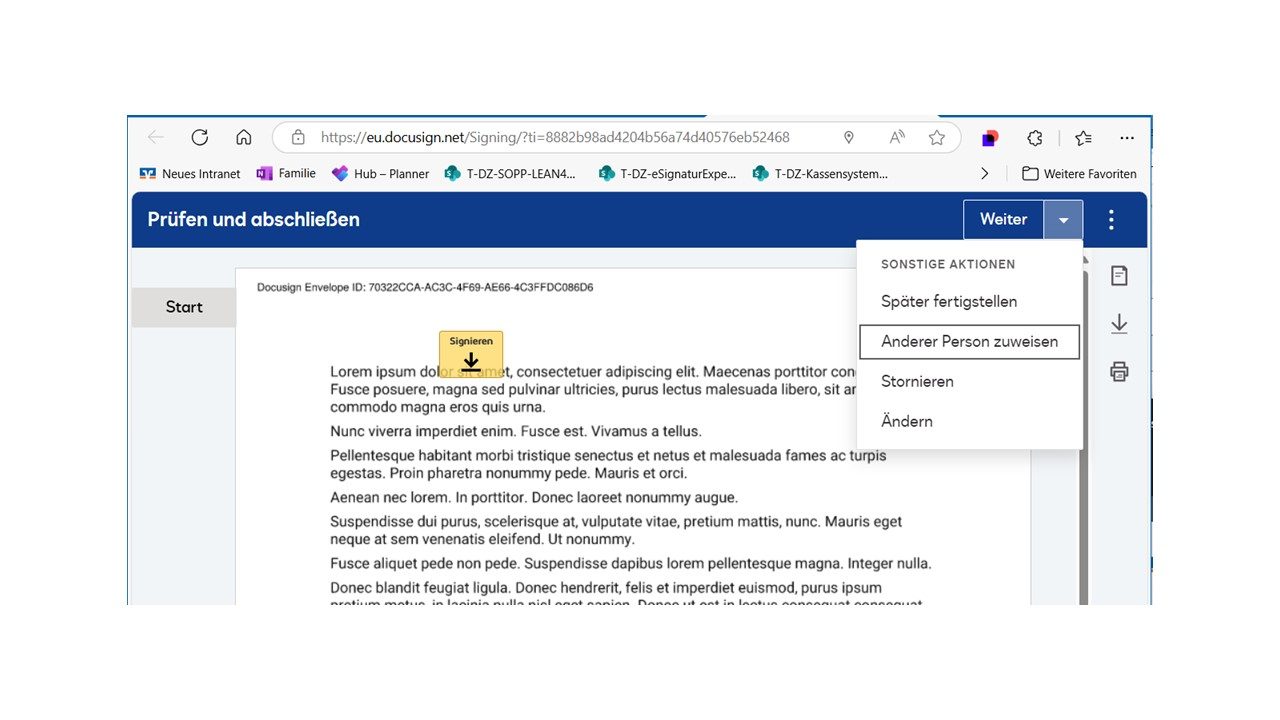
A dialog box opens, please enter the name and email address of the person who should sign the contract.
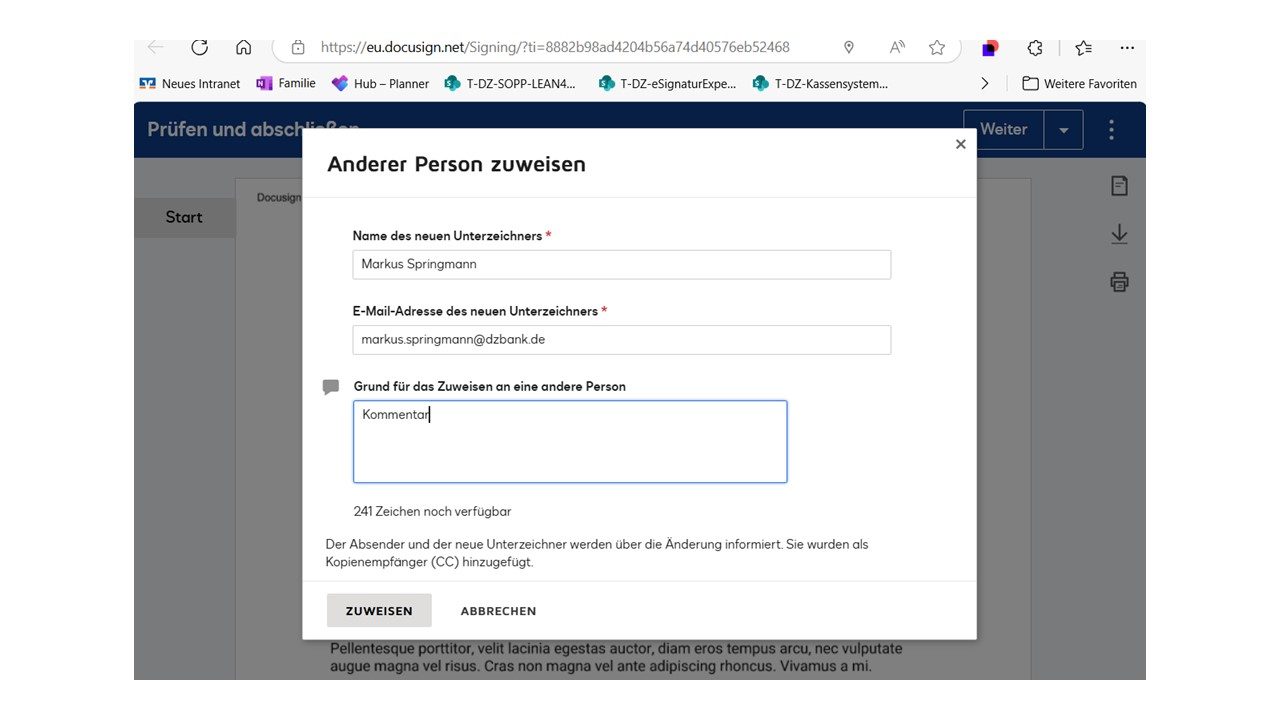
As soon as you select 'Assign', the person you have entered will be added to the contract as a signatory in your place. Docusign will automatically send an email to notify this person.
You can adjust the language of the buttons and help texts in Docusign: In the bottom left corner of the page, there is a dropdown where you can adjust the language. Many of the world's languages can be selected here.
The language for the sign-me process, including buttons and help texts, is controlled by the browser's language setting. However, it only switches between German and English; other languages are currently not supported.
This does not change the documents to be signed and the individual texts in the notifications. If you would like the documents in a different language, please contact your point of contact at DZ BANK.